# Skill Center
A **skill** is a reusable set of instructions that teaches an AI agent how to handle a specific task. It typically includes a `SKILL.md` file and may include examples, reference material, or scripts the agent uses when needed. See [Anthropic's introduction to Agent Skills](https://www.anthropic.com/research/equipping-agents-for-the-real-world-with-agent-skills).
Skill Center brings curated, personal, and project skills into the same workflow, whether you are reviewing a design, debugging a service, or preparing a research experiment. Find a method, inspect its instructions, and load it for a single task. You can decide whether to install, adapt, or share it later.
## 1. Find a skill
Open [Skill Center](https://console.massifyai.com/skills) and check the organization, team, and project in the top bar. Search by the task you want to accomplish, or by a skill's name if you know it.
Compare the descriptions before choosing. A similar name is a starting point, not proof that a skill fits your task. The **Curated** label identifies a library skill; personal and project skills come from work people have chosen to keep.
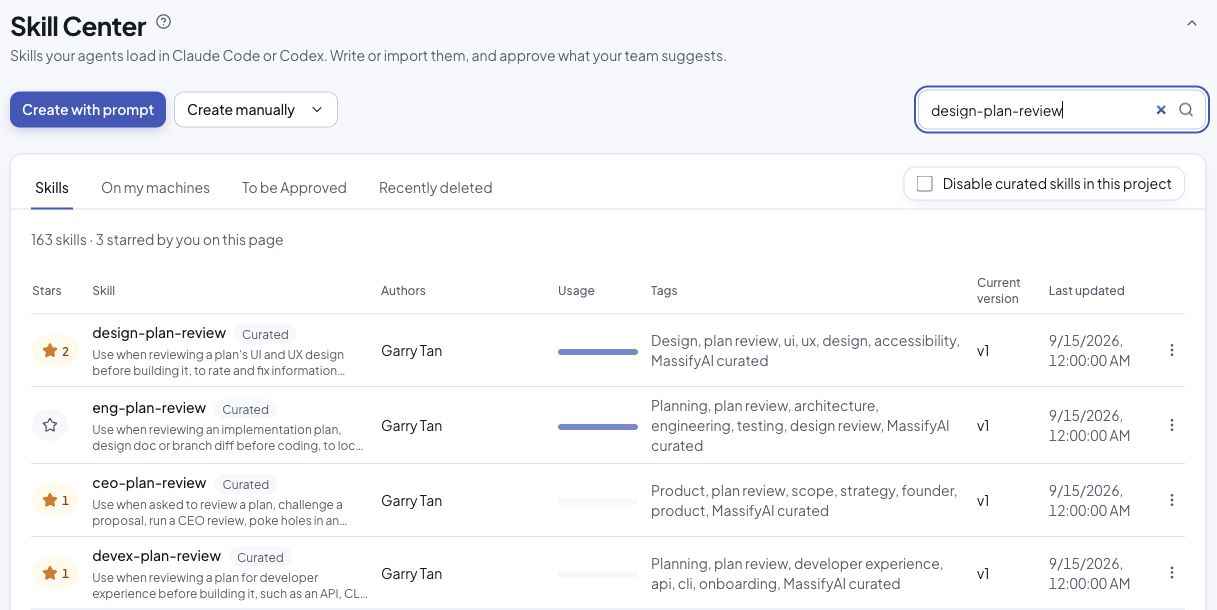
*Search by task, then compare each skill's description, source, and version.*
[View full-size search screenshot](/docs-assets/features/skill-search.64ff5997eadd.jpg)
**No suitable result?** Try a broader task description. If nothing fits, continue without a skill rather than applying an unrelated method. Once you have a useful, verified approach, consider saving it as a new skill.
**Expected a specific skill to appear?** Check the agent's project, connection, and curated-skill visibility. A missing result can be an access or setup issue; see [Troubleshooting](/docs/reference/troubleshooting).
## 2. Inspect its instructions
Open a result and read its description and `SKILL.md`. Check that its scope matches your input and that you can supply any prerequisites. Note the source and current version; read supporting files only when a step needs them.
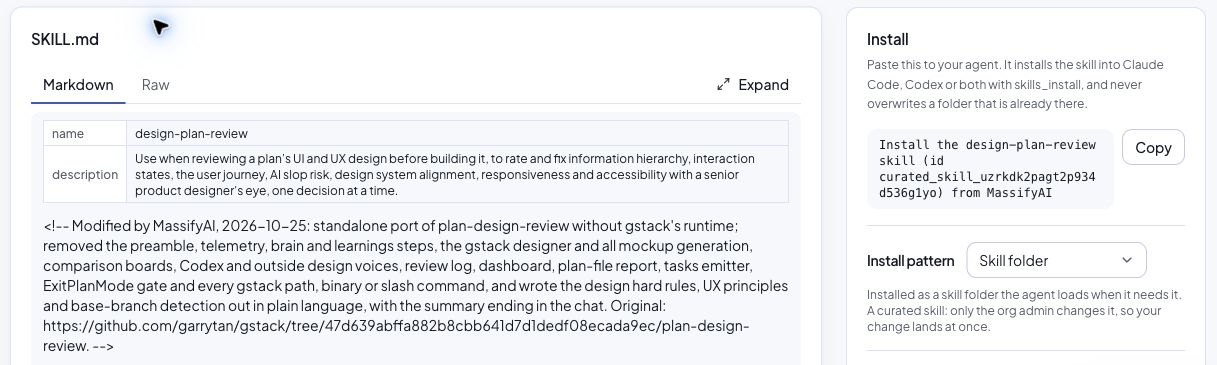
*Open a skill to inspect its instructions. The Install panel is for keeping it available locally; you do not need to install it to load it for the current task.*
[View full-size skill-detail screenshot](/docs-assets/features/skill-instructions-install.ac40c194247a.jpg)
## 3. Load it with your agent
With [MassifyAI connected to your agent](/docs/getting-started/connect-with-one-prompt), describe the task and provide the relevant input.
**Check the agent's project too.** The console's project selector changes what the browser shows; your running agent can use a different project. Ask it to call `whoami` and confirm its organization and project. If they differ from the workspace you intend to use, follow [Switch projects](/docs/how-to/switch-projects) before continuing.
Use this prompt when you want a recommendation. Replace the placeholders with your intended organization/project, task, and input. For ``, paste the material you want reviewed or provide a file your agent can read, such as your website design plan.
**Ready-to-use example**
```text
First follow https://www.massifyai.com/docs-assets/setup/connection-check.md. Complete setup only if needed, then continue below.
Call MassifyAI whoami and report the actual organization/project for this session; use that confirmed project for this read-only practice exercise. Find a MassifyAI skill for reviewing a personal news briefing's source consistency. Show a short shortlist and load the best fit, including references only when needed. Apply its method to https://www.massifyai.com/docs-assets/examples/news-briefing-fix-notes.md as input. Tell me what you checked and what remains uncertain. Don't save or install anything.
```
**Prompt template**
```text
First follow https://www.massifyai.com/docs-assets/setup/connection-check.md. Complete setup only if needed, then continue below.
Call MassifyAI whoami and report the actual organization/project for this session; use that confirmed project for this read-only practice exercise. Find a MassifyAI skill for . Show a short shortlist and load the best fit, including references only when needed. Apply its method to as input. Tell me what you checked and what remains uncertain. Don't save or install anything.
```
**Already chose a skill?** Keep the project check, name the skill or paste its Skill Center link, and ask the agent to load that exact skill instead of searching again.
Loading makes the skill's instructions available in the current session. The agent should follow its method and report what it checked; loading alone does not mean your task is complete.
### Example: review a design plan
The following is an illustrative exchange, shortened to show how a review starts and one useful finding after its setup questions:
> **Example conversation**
>
> **You:** Find a skill for reviewing a website's design plan before implementation.
>
> **Agent:** `design-plan-review` fits UI and UX decisions; `eng-plan-review` covers implementation architecture. I recommend `design-plan-review` for this task.
>
> **You:** Load `design-plan-review`.
>
> **Agent:** Loaded. What plan or page should I review?
>
> **You:** Review this plan: a dashboard lists saved projects and has a Create project button. Cover all seven design dimensions and explain the changes you recommend. Do not start building yet.
>
> **Agent, later in the review:** The plan doesn't say what a new user sees when there are no projects. I recommend an empty state that explains what a project holds and offers a clear Create project action. Should I add that to the plan?
>
> **You:** Yes, add that empty state.
>
> **Agent:** The plan now specifies the first-project experience, so implementation won't default to a blank list. The interface hasn't been built yet.
Use your own plan in place of the dashboard example. This skill asks for a target when none is clear, then works through design decisions with you. A useful result is a specific gap found and a decision recorded, not just a longer answer. Its finished review should distinguish agreed changes from unresolved questions. For the full workflow, see [Design and build a polished website](/docs/tutorials/design-a-polished-website).
## 4. Choose whether to load, install, or save
| Action | Use it when | What changes |
| ------------------ | ------------------------------------------------------ | --------------------------------------------------------------------------- |
| **Load** | You want to apply an existing skill to this task. | Its instructions enter the agent's session. No skill files are installed. |
| **Install** | You want the skill available locally for future work. | Skill files are written to the chosen location for your coding agent. |
| **Save or revise** | You have a reusable method worth keeping or improving. | A skill or revision is published to Skill Center or submitted for approval. |
Installing and saving are separate decisions. Check the intended destination and outcome before asking your agent to do either. For updates and supported sync behavior, see [Install and sync skills](/docs/how-to/install-and-sync-skills).
## 5. Create or share a skill
Start by searching for an existing method to improve. Review the exact draft, its evidence, scope, and success checks before saving it. If the method still needs refinement, follow [Turn a solved bug into a reusable skill](/docs/tutorials/mine-and-refine-a-skill).
### Personal, project, and curated skills
Personal skills are visible to their owner, the relevant team lead, and organization admins. Project skills are visible to everyone in their project. Confirm the destination and visibility before sharing; a submitted change may await approval.
A curated original is read-only. Create an owned adaptation when you want to change its instructions for your work.
**Ready-to-use example**
```text
First follow https://www.massifyai.com/docs-assets/setup/connection-check.md. Complete setup only if needed, then continue below.
Save only our reviewed “Stale news summary review” local draft revision 1 at .mined-skills/stale-news-summary-review/SKILL.md to the MassifyAI project returned by whoami, with Personal visibility. Read the file and verify that it is the exact final draft we reviewed. Check for an existing target and stop if it differs from the agreed owner/version. If the reviewed draft or approval context is missing, report that prerequisite instead of creating one. Return the actual published or pending-review state and link. Do not install or upload other candidates.
```
**Prompt template**
```text
First follow https://www.massifyai.com/docs-assets/setup/connection-check.md. Complete setup only if needed, then continue below.
Save only our reviewed “” local draft revision at to the MassifyAI project returned by whoami, with visibility. Read the file and verify that it is the exact final draft we reviewed. Check for an existing target and stop if it differs from the agreed owner/version. If the reviewed draft or approval context is missing, report that prerequisite instead of creating one. Return the actual published or pending-review state and link. Do not install or upload other candidates.
```
Check the returned link and status. A pending-review receipt means the change was submitted, not published. On the next similar task, load the reviewed revision and check whether it improves the result.
## Related guides
- [Find skills for your task](/docs/getting-started/put-a-skill-to-work)
- [Browse the curated library](/docs/features/curated-library)
- [Share a method with your project](/docs/tutorials/share-team-expertise)
- [Roles and permissions](/docs/reference/roles-and-permissions)