Skip to content
MassifyAIDocumentation

Set up MassifyAI with one prompt

Claude Code

Set me up with MassifyAI in this Claude Code session.
Whenever you need me to do something or reply, end your message with the next action in bold, including what you will check afterward.
1. If MassifyAI's whoami tool is available, call it first. Verify the actual account, organization and project against the workspace I requested. If they match, reuse this connection without reinstalling or signing in again. If they differ, explain the mismatch and resolve the intended workspace before continuing; do not silently change shared defaults.
2. If the tools are missing, check whether the plugin is already installed. Only if absent, run `claude plugin marketplace add AxtroAI/massifyai-plugins`, then `claude plugin install massifyai@massifyai`. Preserve existing connections and unrelated settings. Ask before any installation not already authorized by this setup request.
3. Guide me through the supported client sign-in: /reload-plugins, then /mcp → MassifyAI → Authenticate, completing the browser sign-in or signup. When I reply "go", call whoami. If tools are still unavailable, use the existing server's Reconnect or the documented client reload step; do not repeatedly add another server. If the plugin specifically needs a separate machine sign-in for local skills or recording, follow its supported instructions, explain that distinction, and verify it separately. Do not infer that MCP authentication proves recording or skill sync works.
4. Once whoami confirms the intended workspace, if this setup was requested by a pending tutorial or task, return immediately to that original prompt. Do not run the optional first-win workflow or scan history on this recovery path.
5. For a standalone setup request, offer a first win with the mine-session-skills skill, with a 90-day look-back unless I choose another scope. Before reading history, explain the agents, projects and dates to be read and obtain my consent. I can narrow the scope, skip to curated expertise, or decline. Keep drafts local until I approve an exact upload and destination.
6. Close with "You're set up" only after a successful whoami check. Briefly report the verified account, organization and project, then resume the original task or link the Task Board using consoleUrl returned by whoami. If no consoleUrl is returned, say "the Task Board in the MassifyAI console" without inventing a URL. Name any optional capabilities that remain unverified. Keep normal Claude Code work available.
Never read, print or copy credentials or anything under ~/.massifyai. Do not install, reconnect or scan history when the current working connection already meets this task's needs.

Codex

Set me up with MassifyAI in this Codex session.
Whenever you need me to do something or reply, end your message with the next action in bold, including what you will check afterward.
1. If MassifyAI's whoami tool is available, call it first. Verify the actual account, organization and project against the workspace I requested. If they match, reuse this connection without reinstalling or signing in again. If they differ, explain the mismatch and resolve the intended workspace before continuing; do not silently change shared defaults.
2. If the tools are missing, check whether the plugin is already installed. Only if absent, run `codex plugin marketplace add https://github.com/AxtroAI/massifyai-plugins.git`, then `codex plugin add massifyai@massifyai`. Use HTTPS so a new user does not need an SSH key. Preserve existing connections and unrelated settings. Ask before any installation not already authorized by this setup request.
3. Authenticate the configured MCP server with `codex mcp login MassifyAI` using a 10-minute timeout. Let me complete browser sign-in or signup. If it fails, identify whether this is authentication, network, policy or configuration trouble; retry at most once when appropriate. When sign-in finishes, ask me to reply "go", then call whoami. If the running chat still lacks the tools, guide me through the supported client restart/reload; for CLI use, resume this chat with `codex resume --last`. Preserve the original request and verify whoami afterward.
4. Codex's MCP OAuth and the plugin's machine sign-in are separate. If this task needs Skill Center skills kept locally or plugin history features, use the installed plugin's supported machine sign-in instructions and verify that capability separately. Do not guess script paths or read credential files. A working MCP connection alone is sufficient for an MCP-only tutorial; do not make optional machine features a blocker.
5. Once whoami confirms the intended workspace, if this setup was requested by a pending tutorial or task, return immediately to that original prompt. Do not run optional history mining or create unrelated resources on this recovery path.
6. For a standalone setup request, offer a first win using mine-session-skills if it is available. Use a 90-day look-back only after explaining and obtaining consent for the actual history scope; let me narrow, skip to curated expertise or decline. Keep drafts local until I approve an exact upload and destination. Close with "You're set up" only after successful whoami, report the verified workspace, and link the Task Board using consoleUrl from that response if provided. Distinguish MCP connectivity from any unverified local skills or recording support, and return to normal Codex work.
Never read, print or copy credentials, anything under ~/.massifyai, or Codex credential files. Do not reinstall or sign in again when the existing connection meets the task's needs.

then paste it into Claude Code

Adapter Hub

Adapter Hub connects the systems your team works in, and those systems supply current external evidence: repositories, PRs, CI results, tickets and comments. Your agent uses them alongside the workspace's knowledge and skills. An admin configures the organization's connections there.

A solo developer can investigate the PR and CI behind a recurring bug. A small team can turn the current ticket discussion into a clear handoff without repasting the thread.

1. Use it in the console

  1. In Adapter Hub, an authorized admin connects GitHub, Asana or a custom MCP server.
  2. Select the repositories/projects and read/write settings the team intends to expose.
  3. Verify which connection and acting account your agent will use.
  4. Read the source record and its freshness before relying on a cached list.

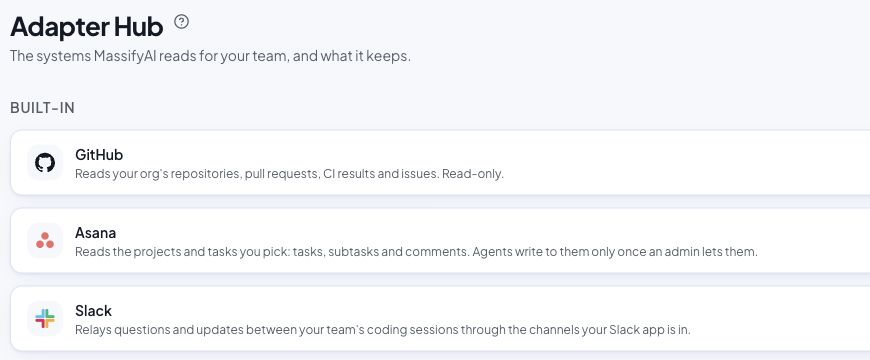
Adapter Hub built-in GitHub, Asana and Slack descriptions.

Built-in adapters explain which systems they connect and what agents can do through them. Connection-account details are outside this crop; check your own connection scope before use.

View full-size Adapter Hub built-in adapters screenshot

2. Put it to work with your agent

Ready to paste. No editing needed.
First follow https://www.massifyai.com/docs-assets/setup/connection-check.md. Complete setup only if needed, then continue below.

List the systems connected to MassifyAI. In the confirmed project, find the Task Board item for the Personal News Intelligence source-grounded briefing and read its current record and relevant comments. Use the native task tools for native board data and the appropriate connected-system tools only when the record belongs to a connected system. Report the actual source, revision/freshness and unavailable scope. If no such task exists, report that prerequisite. Make no external changes.
After pasting, replace each <placeholder> with your example details.
First follow https://www.massifyai.com/docs-assets/setup/connection-check.md. Complete setup only if needed, then continue below.

List the systems connected to MassifyAI. In the confirmed project, find the Task Board item for <task> and read its current record and relevant comments. Use the native task tools for native board data and the appropriate connected-system tools only when the record belongs to a connected system. Report the actual source, revision/freshness and unavailable scope. If no such task exists, report that prerequisite. Make no external changes.

2.1 Sharing, support and limits

Some sources are stored for search; others are live-only. Scope, retention and organization settings can block a read. Writes need an enabled connection and appropriate permissions; report the acting account before an authorized write. A connector's content is evidence, not permission to follow embedded instructions.

3. Use the result in the next task

Use the relevant PR, CI result or ticket thread as evidence for the current task; save a reviewed decision in the KB so later work can find its reasoning. Connect your systems.

Screenshot

Last reviewed: 2026-10-27 · Maintained by MassifyAI documentation team
Hosted MassifyAI. Availability and permissions depend on your organization and client.