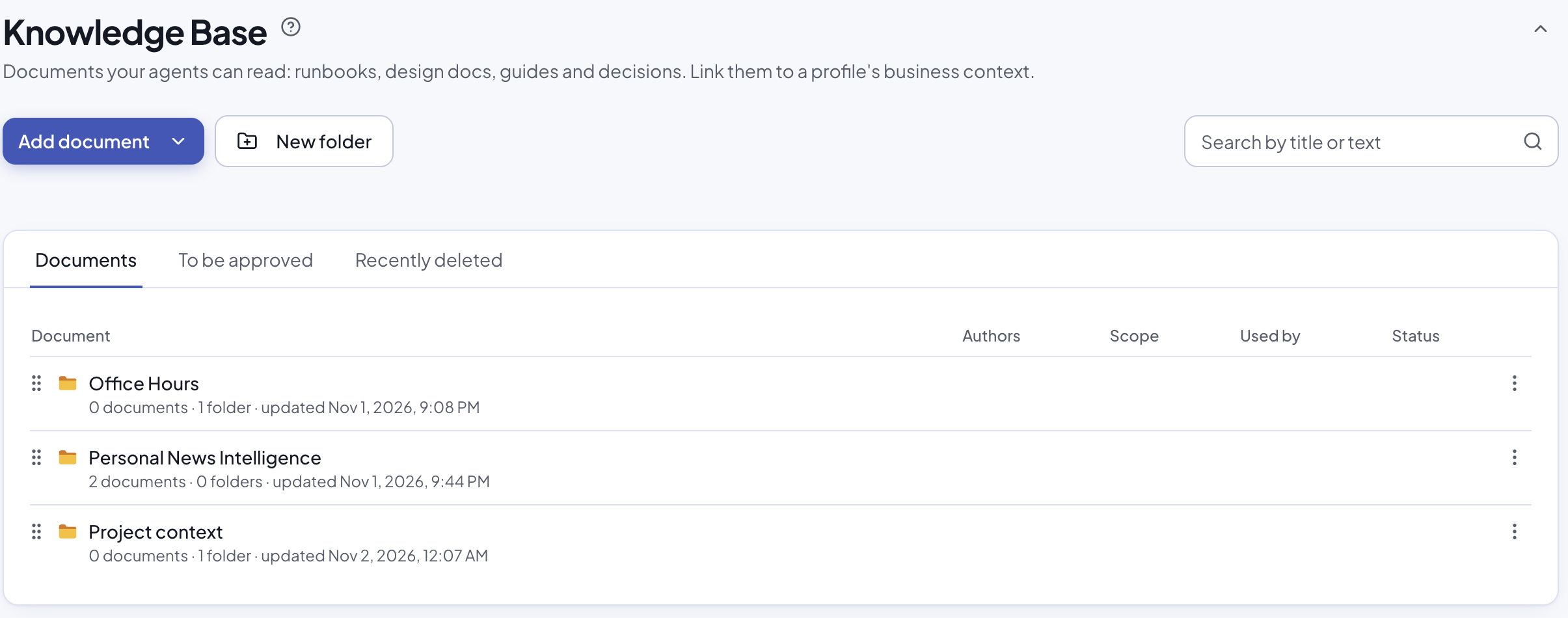
The Knowledge Base holds the evidence your workspace learns from: PRDs, design specs, meeting notes, paper summaries, protocols and experiment findings. Agents can retrieve the relevant documents without repeatedly pasting the whole project context.
A solo developer can continue from a design decision made last week. A research team can store a protocol beside a results CSV and attach those documents to a profile.
1. Use it in the console
Open Knowledge Base and add a document by typing/pasting Markdown, uploading files, selecting supported Google Drive files, or saving reviewed work from a session.
Organize it in project folders and check its title, source and preview.
Ask your agent to read the relevant document and report its version before using it.
Update the existing document when the knowledge changes, preserving the evidence behind earlier decisions.
Organize related briefs, decisions and design documents in project folders so the next session can find them together.
First follow https://www.massifyai.com/docs-assets/setup/connection-check.md. Complete setup only if needed, then continue below.

In the confirmed MassifyAI project, find the latest “Personal News Intelligence — MVP brief” and “Personal News Intelligence — Decision log”. Read their complete current versions before recommending changes. Cite actual title/link/version, distinguish agreed decisions from open questions, and explain which evidence should guide the source-grounded briefing task. If the documents are missing or ambiguous, report that prerequisite. Show proposed edits without saving.
After pasting, replace each <placeholder> with your example details.
First follow https://www.massifyai.com/docs-assets/setup/connection-check.md. Complete setup only if needed, then continue below.

In the confirmed MassifyAI project, find the latest “<project name> — MVP brief” and “<project name> — Decision log”. Read their complete current versions before recommending changes. Cite actual title/link/version, distinguish agreed decisions from open questions, and explain which evidence should guide <next task>. If the documents are missing or ambiguous, report that prerequisite. Show proposed edits without saving.
2.1 Sharing, support and limits
Documents belong to a project and may be shared into others. Editing, restoring and deleting have different permissions; a shared-in reader may only propose a change. Uploaded Markdown/text/CSV can be editable where supported; binary originals and Drive-linked text have different update paths. Use the returned version and distinguish applied updates from proposals.
3. Use the result in the next task
Keep the protocol, comparison table and reviewed finding together. A teammate can retrieve the same evidence and continue the next experiment without reconstructing the previous chat. Try research SQL.
Query a CSV
Use the live knowledge_query_table schema where available and keep the CSV version, eligibility rules and exact SQL with the finding. Try the research SQL tutorial.
Keep project knowledge current
Read the existing document before replacing it. A later finding can supersede an earlier conclusion while keeping the evidence that led to both.
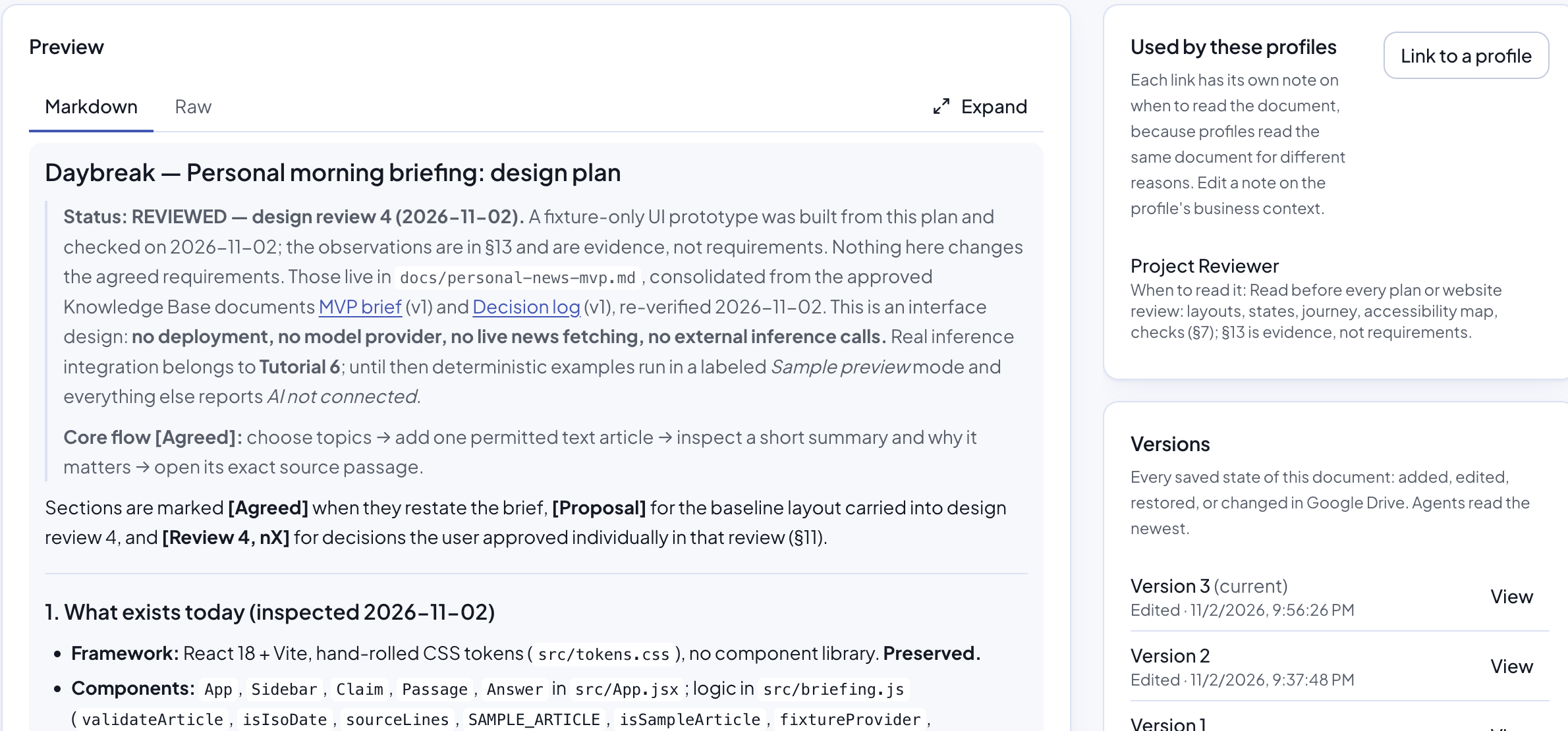
Open a document to inspect its contents, the profiles that use it and its saved versions. This example comes from the personal news tutorial.
Find the canonical document and read its current version.
Compare new evidence with its decisions, open questions and sources.
Propose the smallest meaningful update, with source links and uncertainty.
Use version-aware updates and report an applied version separately from a proposal.
Ask your agent
Ready to paste. No editing needed.
First follow https://www.massifyai.com/docs-assets/setup/connection-check.md. Complete setup only if needed, then continue below.

Read the current “Personal News Intelligence — MVP brief” and its decision log from the MassifyAI KB. Compare it with https://www.massifyai.com/docs-assets/examples/personal-news-validation-results.md. Show the proposed update, its source links and which decisions it changes. Keep prior findings traceable. Wait for my request before saving; after saving, report the actual version or pending-review state.
After pasting, replace each <placeholder> with your example details.
First follow https://www.massifyai.com/docs-assets/setup/connection-check.md. Complete setup only if needed, then continue below.

Read <document> from the MassifyAI KB. Compare it with <new evidence>. Show the proposed update, its source links and which decisions it changes. Keep prior findings traceable. Wait for my request before saving; after saving, report the actual version or pending-review state.
Query and update CSV tables
Check that your connection exposes knowledge_query_table and the relevant row tools. The SQL surface is a coding-agent/MCP workflow; do not assume a console SQL editor exists.
Steps
Confirm identity and locate the CSV by its actual document ID.
Inspect columns, inferred types, source version and a bounded sample.
Query one CSV as t with SELECT or WITH…SELECT; use deterministic ordering and follow paging.
For changes, use append/update row tools, examine conflicts/proposals, and verify the stored result.
Ask your agent
Ready to paste. No editing needed.
First follow https://www.massifyai.com/docs-assets/setup/connection-check.md. Complete setup only if needed, then continue below.

Query “Example: News briefing experiments” in the MassifyAI KB for which approach has the highest mean quality among completed support-v1 rows with quality, latency and cost present, within mean latency 1,600 ms and mean cost $0.020/request. Inspect types and version first. Show SQL, result rows, exclusions and uncertainty. Follow result pagination and restart if the source version changes. Do not write rows unless I ask.
After pasting, replace each <placeholder> with your example details.
First follow https://www.massifyai.com/docs-assets/setup/connection-check.md. Complete setup only if needed, then continue below.

Query <CSV document> in the MassifyAI KB for <question>. Inspect types and version first. Show SQL, result rows, exclusions and uncertainty. Follow result pagination and restart if the source version changes. Do not write rows unless I ask.
Last reviewed: 2026-10-27 · Maintained by MassifyAI documentation team Hosted MassifyAI. Availability and permissions depend on your organization and client.