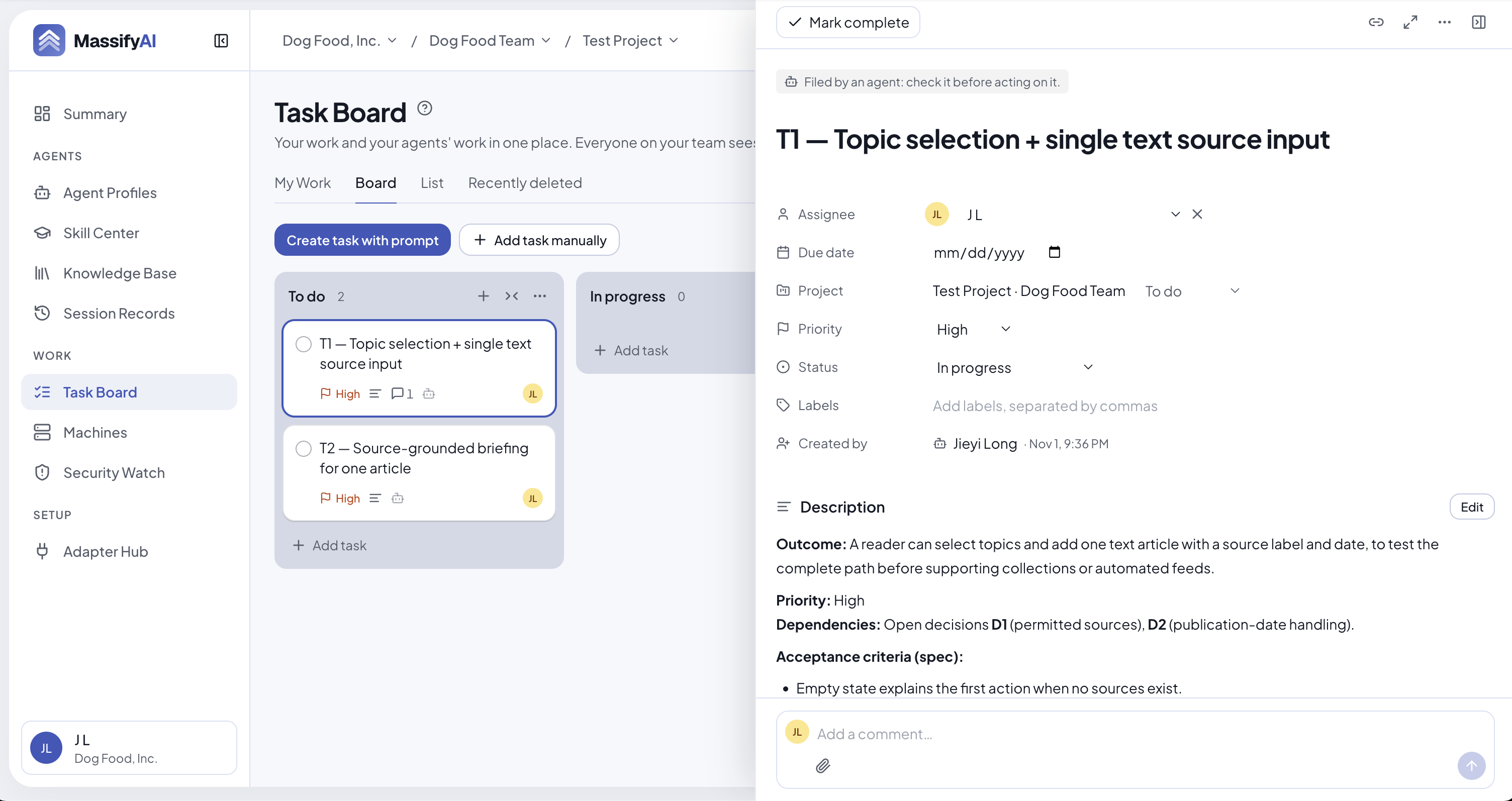
The Task Board keeps the work plan visible to people and agents: priorities, assignees, states, subtasks, comments and evidence. It connects a reviewed decision to the next action in the workspace improvement loop.
A solo founder can ask what to build next from an MVP spec. A small team can see who owns a task, what blocks it, and which result proves it is done.
You can ask all of this in Claude Code or Codex. The agent reads tasks, comments and the relevant knowledge base documents, then explains the current picture and recommends a focus. You do not need to open the console for everyday check-ins; it remains available for inspecting sources or managing the workspace. The summary is only as current and complete as the records the agent can read.
1. Use it in the console
Create a small board from an agreed spec; check for existing tasks first.
Give each task an outcome, owner, priority and acceptance criteria.
Read current comments and blockers before recommending or claiming work.
Update progress and link the actual result after the work is checked.
Open a card to inspect its owner, priority, status and acceptance criteria while keeping the board in view. This example shows the tutorial’s fictional project.
Use this in an existing project chat or a new chat connected to the same project. No repository, recorded session or new task is required. If you have several workstreams, name the one you want summarized.
Ready to paste. No editing needed.
First follow https://www.massifyai.com/docs-assets/setup/connection-check.md. Complete setup only if needed, then continue below.

Give me a short project update in everyday language. Confirm the intended MassifyAI organization/project and scope, then search for the relevant current Task Board tasks, subtasks and recent comments. Read the linked knowledge base brief or PRD, decisions, design requirements and evaluation findings where available. Follow relevant result pages and document sections; say which parts or sources you could not read. If context is missing, give the limited task-only picture rather than inventing it.

Start with the goal and up to five bullets covering verified progress, active work and owners, blockers, open decisions and the recommended next focus. Distinguish recorded task states, user reports, supplied fixtures and demonstrated results; a done task is not proof of a release. Keep source links, versions or update times, checked time and any stale or partial coverage in a compact list after the explanation. Do not invent a completion percentage, deadline or missing evidence. Offer two focused questions I can ask to go deeper. Read only: do not change tasks, comments, priorities, documents or sharing, run code or start agents.

Link each native Task Board ticket by its title using {consoleOrigin}/tasks?view=board&task={taskId}&project={projectId}&org={organizationId}, so the board stays visible with the ticket's side panel open. Use the verified console origin and actual task/project/organization IDs from tool results or verified workspace context; URL-encode the values. Retrieve missing fields with read-only tools or explain what could not be verified. Do not use standalone /tasks/{taskId} links or invent IDs. Keep connected-tracker links on their actual provider.
Ready to paste. This prompt needs no substitutions.
First follow https://www.massifyai.com/docs-assets/setup/connection-check.md. Complete setup only if needed, then continue below.

Give me a short project update in everyday language. Confirm the intended MassifyAI organization/project and scope, then search for the relevant current Task Board tasks, subtasks and recent comments. Read the linked knowledge base brief or PRD, decisions, design requirements and evaluation findings where available. Follow relevant result pages and document sections; say which parts or sources you could not read. If context is missing, give the limited task-only picture rather than inventing it.

Start with the goal and up to five bullets covering verified progress, active work and owners, blockers, open decisions and the recommended next focus. Distinguish recorded task states, user reports, supplied fixtures and demonstrated results; a done task is not proof of a release. Keep source links, versions or update times, checked time and any stale or partial coverage in a compact list after the explanation. Do not invent a completion percentage, deadline or missing evidence. Offer two focused questions I can ask to go deeper. Read only: do not change tasks, comments, priorities, documents or sharing, run code or start agents.

Link each native Task Board ticket by its title using {consoleOrigin}/tasks?view=board&task={taskId}&project={projectId}&org={organizationId}, so the board stays visible with the ticket's side panel open. Use the verified console origin and actual task/project/organization IDs from tool results or verified workspace context; URL-encode the values. Retrieve missing fields with read-only tools or explain what could not be verified. Do not use standalone /tasks/{taskId} links or invent IDs. Keep connected-tracker links on their actual provider.
2.1 Sharing, support and limits
The native board and connected Asana are different systems; connecting Asana does not imply automatic synchronization of board items. Task tools use state, including in_progress and in_review, rather than invented status values. Duplicate responses need review. Assigning an agent does not itself prove a hosted run started.
3. Use the result in the next task
When a task changes an MVP assumption, update the spec and acceptance criteria before ranking the next task. Work from an MVP spec.
Choose the next task
Read the current spec, tasks and comments together. Recommend a small useful task with reasons and wait for the person to choose before claiming or reassigning it.
Prioritize your next task
Use current evidence instead of a remembered priority list. A solo developer can choose the next useful slice; a team must also account for owners, active work and blockers.
Steps
Read the current MVP spec and newer agreed decisions.
Inspect open tasks, relevant comments, owners and blockers.
Rank small useful options with acceptance criteria and explain uncertainty.
Wait for the choice before claiming, creating or reassigning tasks.
Ask your agent
Ready to paste. No editing needed.
First follow https://www.massifyai.com/docs-assets/setup/connection-check.md. Complete setup only if needed, then continue below.

Refresh the relevant tasks and recent comments together with the current knowledge base brief, decisions and evaluation findings behind that update. Recommend up to three next tasks or decisions by goal alignment, value/risk, urgency, dependencies and ownership. Choose one smallest useful next focus, explain why it comes first in plain language, and give its intended outcome and acceptance check. Respect active owners and suggest non-overlapping work where needed. Separate existing tasks from proposed activities. Cite actual sources/versions, when checked and any missing evidence; if the ranking is uncertain, name the information or decision that would change it. Do not create, claim, reassign, reprioritize or update tasks or documents, run code or start agents. Wait for my choice.

Link each existing native Task Board ticket by its title using {consoleOrigin}/tasks?view=board&task={taskId}&project={projectId}&org={organizationId}. Use the verified console origin and actual task/project/organization IDs from tool results or verified workspace context; URL-encode the values. Retrieve missing fields with read-only tools or explain what could not be verified. Do not use standalone /tasks/{taskId} links, invent IDs or present proposed activities as saved tasks. Keep connected-tracker links on their actual provider.
Ready to paste. This prompt needs no substitutions.
First follow https://www.massifyai.com/docs-assets/setup/connection-check.md. Complete setup only if needed, then continue below.

Refresh the relevant tasks and recent comments together with the current knowledge base brief, decisions and evaluation findings behind that update. Recommend up to three next tasks or decisions by goal alignment, value/risk, urgency, dependencies and ownership. Choose one smallest useful next focus, explain why it comes first in plain language, and give its intended outcome and acceptance check. Respect active owners and suggest non-overlapping work where needed. Separate existing tasks from proposed activities. Cite actual sources/versions, when checked and any missing evidence; if the ranking is uncertain, name the information or decision that would change it. Do not create, claim, reassign, reprioritize or update tasks or documents, run code or start agents. Wait for my choice.

Link each existing native Task Board ticket by its title using {consoleOrigin}/tasks?view=board&task={taskId}&project={projectId}&org={organizationId}. Use the verified console origin and actual task/project/organization IDs from tool results or verified workspace context; URL-encode the values. Retrieve missing fields with read-only tools or explain what could not be verified. Do not use standalone /tasks/{taskId} links, invent IDs or present proposed activities as saved tasks. Keep connected-tracker links on their actual provider.
Ask a follow-up
The first answer can stay short. Ask for the reasoning behind one blocker, decision or priority when you need it; the agent should read the relevant sources instead of sending you back to browse the whole backlog.
Ready to paste. No editing needed.
First follow https://www.massifyai.com/docs-assets/setup/connection-check.md. Complete setup only if needed, then continue below.

Explain the highest-priority blocker or open decision in your last update in more detail, using plain language first. Refresh its relevant task comments and knowledge base sections. Tell me the impact on the project goal, current owner, dependencies, what is known versus inferred, and the evidence or decision needed to move forward. Explain why the recommended next action takes priority over the alternatives. Link the actual supporting sources and identify anything missing or contradictory. If I ask what changed over time, compare dated records or versions and say when an earlier snapshot is unavailable. Read only; do not change records or begin the work.

Link each native Task Board ticket by its title using {consoleOrigin}/tasks?view=board&task={taskId}&project={projectId}&org={organizationId}. Use the verified console origin and actual task/project/organization IDs from tool results or verified workspace context; URL-encode the values. Retrieve missing fields with read-only tools or explain what could not be verified. Do not use standalone /tasks/{taskId} links or invent IDs. Keep connected-tracker links on their actual provider.
After pasting, replace each <placeholder> with your example details.
First follow https://www.massifyai.com/docs-assets/setup/connection-check.md. Complete setup only if needed, then continue below.

Explain <topic> in more detail, using plain language first. Refresh its relevant task comments and knowledge base sections. Tell me the impact on the project goal, current owner, dependencies, what is known versus inferred, and the evidence or decision needed to move forward. Explain why the recommended next action takes priority over the alternatives. Link the actual supporting sources and identify anything missing or contradictory. If I ask what changed over time, compare dated records or versions and say when an earlier snapshot is unavailable. Read only; do not change records or begin the work.

Link each native Task Board ticket by its title using {consoleOrigin}/tasks?view=board&task={taskId}&project={projectId}&org={organizationId}. Use the verified console origin and actual task/project/organization IDs from tool results or verified workspace context; URL-encode the values. Retrieve missing fields with read-only tools or explain what could not be verified. Do not use standalone /tasks/{taskId} links or invent IDs. Keep connected-tracker links on their actual provider.
Last reviewed: 2026-11-05 · Maintained by MassifyAI documentation team Hosted MassifyAI. Availability and permissions depend on your organization and client.